AI agent time tracking: how to count agent hours
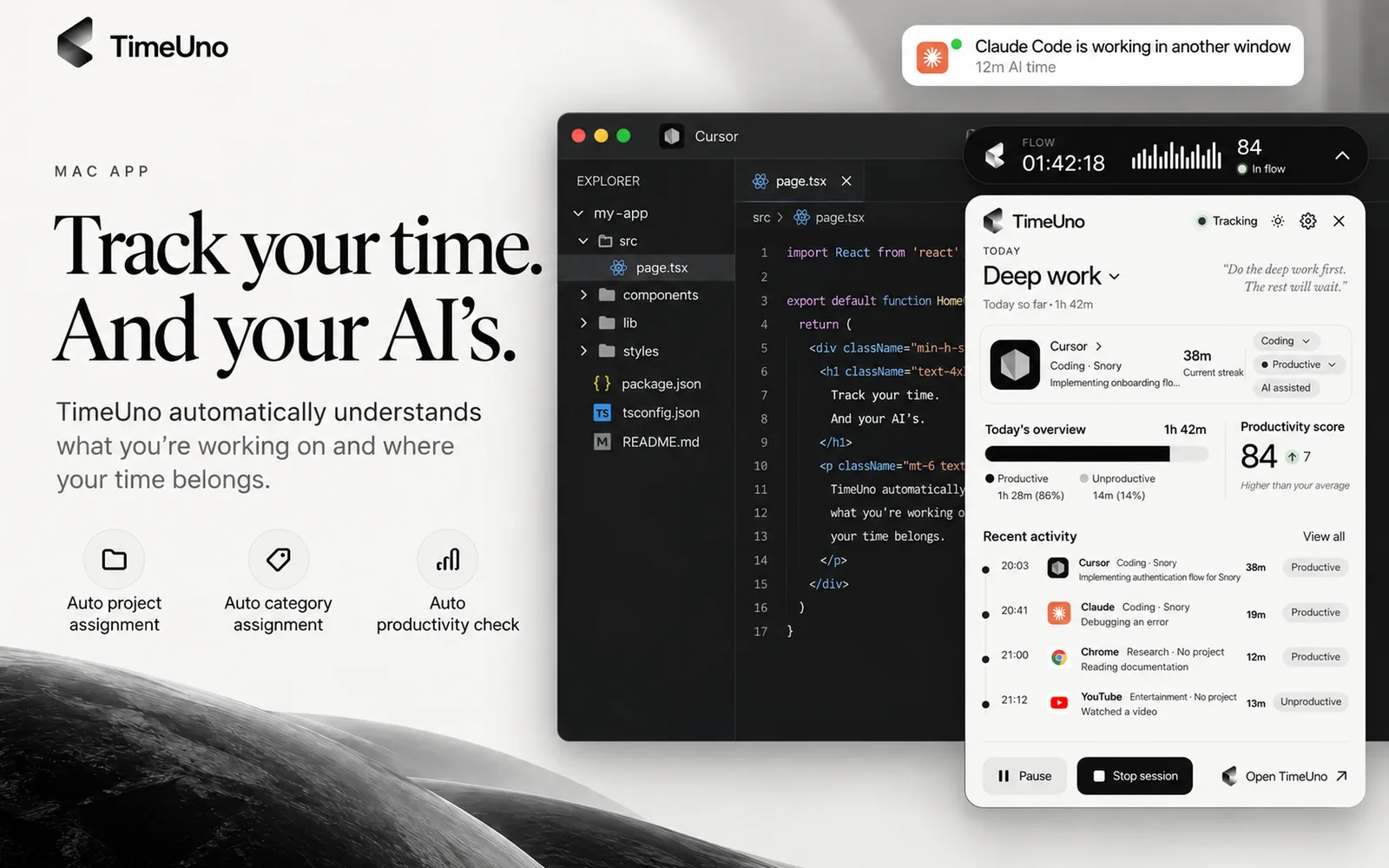
AI agent time tracking means recording how long tools like Claude Code and Cursor work on their own, apart from the hours you work
yourself. A normal time tracker cannot do this. It sees the window in front of you, so an agent that runs for an hour in a background
terminal leaves no trace.
This guide covers what to measure, the mistake that doubles your hours, and how TimeUno records agent time without a timer.
Why a timer cannot track AI agents
A timer counts the hours you remember to start, and it counts one thing at a time. Agents break both rules. They start when you send a
prompt, they keep going while you are in a meeting, and several can run at once.
The result is a gap in your records. You know you worked 6 hours on Tuesday. You do not know that your agents worked 9 hours in the same
day, or which client those hours belong to.
The three numbers to measure
Agent time is three numbers. Mixing them up is what makes reports wrong.
Agent-hours can be longer than the day itself, because agents run in parallel. That is correct, as long as you never add them to your own
hours.
Working time and waiting time are different
An agent session that has been open for 4 hours has not worked for 4 hours. Much of that time it sat idle, waiting for you to answer a
question or approve a step.
Count only the working time. If you bill or report the full session length, you count your own lunch break as agent work.
How to track agent time by hand
You can do this with no tool. It takes about 10 minutes a day.
1. Note the time when you send each prompt to an agent.
2. Note when the agent stops and asks you something. That is the end of one working stretch.
3. Write the project or client next to each stretch.
4. At the end of the day, add the stretches per project. That total is your agent-hours.
5. Keep the total in its own column, next to your own hours, never inside them.
This works for one agent. It falls apart with three agents in three terminals, because you will not see the moment each one stops.
How TimeUno tracks AI agents automatically
TimeUno finds the agents on your computer on its own, with no plugin or config file. It tracks eleven: Claude Code, Codex CLI, Cursor
(editor and CLI), OpenCode, Pi and oh-my-pi, Gemini CLI, GitHub Copilot, Windsurf, Aider, the Claude desktop app and Ollama.
What it records depends on the agent. For Claude Code it records when the agent was working and when it was waiting on you, the project
folder, the model, tokens and cost. For some others, such as Windsurf and Aider, it records only whether the agent is active.
The Overview shows agent time beside your tracked hours, not folded into them. An hour in a meeting while Claude Code refactors in the
background stays one hour for you and one hour of agent work next to it.
What leaves your device
TimeUno sends metadata only: when a session starts and ends, whether the agent is working or waiting, the project folder, and the model,
token count and cost where the tool reports them. Your prompts, the agent's answers and your code never leave your device.
Questions people ask
If I run three agents at once, is that three hours of my day?
No. It is three agent-hours and one wall-clock hour. Your own tracked time does not change.
Can I track agents that run on a server?
Yes. TimeUno has a headless agent for a Linux server you reach over SSH. It tracks Claude Code, Cursor CLI, Codex CLI, Gemini CLI,
OpenCode, Aider, Ollama, oh-my-pi and Pi there.
Is TimeUno free?
No. It has a 14-day free trial, and a card is required to start it. There is no free plan.
Can I bill agent time to clients?
You can, if your contract allows it. Where the agent reports its project folder, you can see the agent-hours for each project. TimeUno
has a guide on
What to do with the numbers
Once you have a week of agent-hours next to your own hours, three checks are worth doing.
1. Compare agent working time with agent waiting time. If your agents wait on you for most of a session, the limit is your attention, not
the tool. Run fewer agents at once, or give each one a longer task.
2. Compare agent-hours per project with what the project delivered. A project with 20 agent-hours and little merged work is a sign the
prompts or the task size need to change.
3. Look at your own hands-on time in the same week. If it did not go down, the agents added output but did not give you time back. Both
results are fine, but they lead to different pricing and planning. Do these checks weekly, not daily. One day of agent data is too noisy
to act on.
Common mistakes
These four mistakes show up most often when people first report agent time.
- Adding agent-hours to your own hours. A day with 6 of your hours and 9 agent-hours is not a 15-hour day. Keep two columns.
- Counting the open session, not the working time. A terminal left open overnight is not 12 hours of work.
- Leaving out the project. Agent time with no project or client next to it cannot be billed or compared.
- Reporting cost with no time. Token cost tells you what the agent spent. It does not tell you how long the work took or whether
you were blocked.
Who needs this
Not everyone needs to track agent time. It pays off in three cases. Freelancers and agencies need it when a client asks what the hours on
an invoice were. Agent work is real work on the project, and the client can only judge it if it is shown apart from your own hours.
Developers need it to see whether agents save time. If your hands-on hours stay the same while agent-hours grow, you are producing more,
not working less. Team leads need it to plan. A team that runs agents in parallel hasmore capacity than its headcount suggests, and the plan should use the measured number, not a guess.
A short checklist before you start
Use this list in your first week. It keeps the numbers clean from day one.
- Pick one place to record agent time, and use it for every agent you run.
- Record working time only. Leave out the time a session sat open and idle.
- Put a project or client next to every stretch of agent work.
- Keep your own hours and agent-hours in two columns, and never add them up.
- Write down the day when several agents ran at once, so a total above 24 hours does not surprise you later.
- Review the totals once a week, on the same day each week.
- Decide with each client, before the invoice goes out, whether agent time is billed and at what rate.