Can I Edit This AI Video Clip for My Friend’s Shop Tonight?
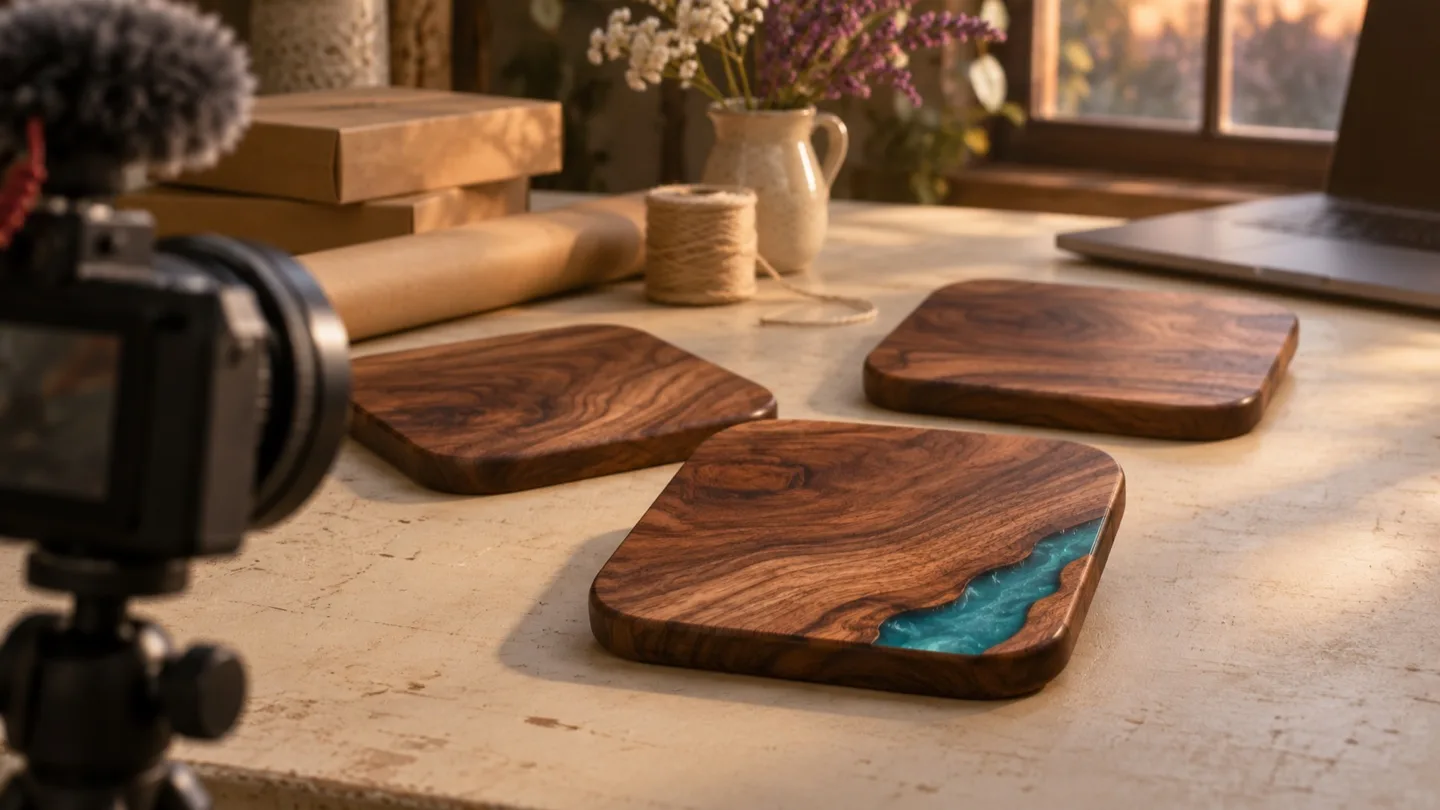
A friend who makes walnut coasters sends you two photos. She wants a short clip for her shop that evening. A small turn would catch the turquoise corner. Before you settle on a tool, find out if you can take one file from the download folder to a cut you can show her.
You only need one clip and the editor you already know. Give the test three checks:
Download one video file and find it on your computer.
Import that file and drag it onto your timeline.
Trim its opening and play the shorter clip from the beginning to the end.
Ask for one move
Pick two photos of the same coaster from the same angle. A straight-down view on a plain table makes it easy to see whether the shape and color hold. In the first photo, the edges are square to the camera. In the second, the coaster is slightly turned. Keep the lighting close so the turn is the main change.
Leave a little room around the corners in both photos. The diagonal of a square takes up more space as it turns, and the extra room makes it easier to see whether the whole coaster stays in view. Use the same aspect ratio you plan to use in your editor. If this clip is one cutaway in a longer shop video, match that project's frame.
In OpenMaker’s free image-to-video tool, put the two photos in the start and end slots, pick the aspect ratio you want, and describe that single move. Here’s a prompt to start with:
From a fixed overhead camera, turn the walnut coaster slowly clockwise to match the final photo. Keep the shape, turquoise corner, table and lighting steady. Keep hands and text out of the frame.
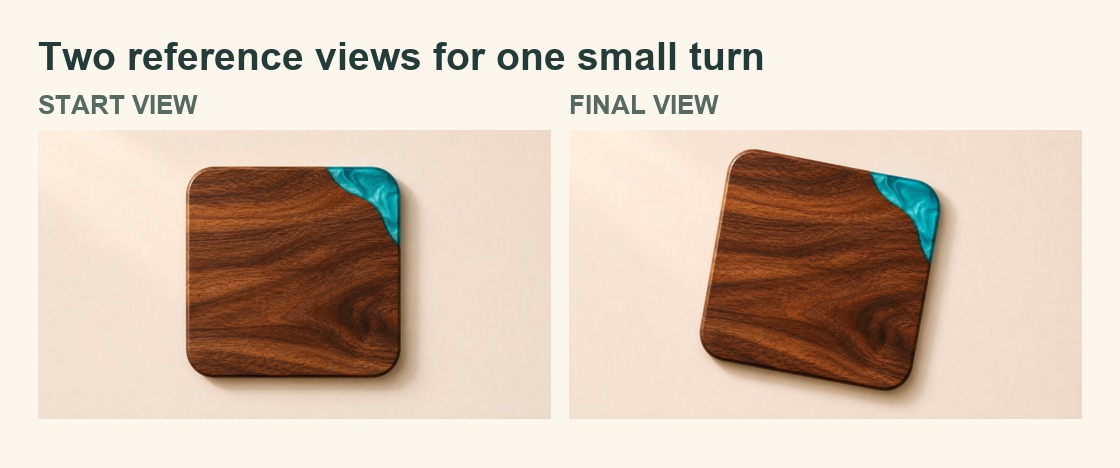
Two example reference views for the coaster scene. They are separate from the public sample used in the edit check.
Try it with a product photo you have permission to use. If your friend wants to show the item as it appears in the shop, compare the color and silhouette with the source photos before sharing it. The point of the small turn is to let the customer see that turquoise corner clearly.
Decide what the clip needs to show
Ask your friend which detail a customer would miss in the first still. In this example, the turquoise corner is already visible, but a slight turn could show where it meets the wood. If the clip cuts off the corner as soon as the coaster turns, the motion works against the reason for making it. Pick a frame where that detail is clear before you start trimming. Check that it still appears in the shorter version.
Also ask how she plans to use the file. A clip meant to fill the screen in a vertical post has a different job from a clip that will sit beside a price and a product name in a wider video. Decide that before setting the crop. Place the original photo in the same project as a reference. If the clip and the photo make the coaster look like different products, you can pick the photo for tonight and keep the clip as a private test.
Bring the file into your usual editor
Save the downloaded video somewhere easy to find. Give it a name you’ll recognize, such as coaster-test.mp4 if the download is an MP4. Open a blank project and import that saved file. In iMovie on a Mac, add it to the timeline from the media area. Keep the original download so you can start over from the same file if needed.
Play once before trimming. Look for the moment when the coaster starts to turn and the corner comes into view. Move the left edge of the clip inward to remove the opening pause. In iMovie, hover over the beginning of the timeline clip until the trim tool appears, then drag the edge toward the middle. If the movement starts sooner than you thought, pull the edge back a little.
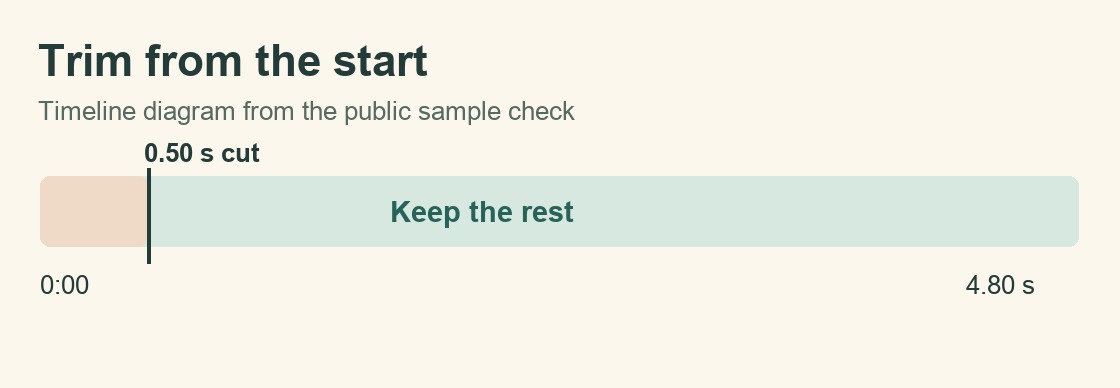
The public sample check removed the first half-second. Choose the start of your own clip by what you can see.
Now watch from the new beginning. You’re looking for two things you can tell your friend plainly. The turn is clear when the clip starts, and the detail she wanted to show stays visible. If the editor gives you an error, copy the message alongside the file name and the editor version. That lets you troubleshoot the same file later.
Make a quick review copy with the export settings you already use. Give the new file a different name and open it from the folder where you saved it. Watch it through once there too. That is the file your friend will see. If you’re sending it to ask about the product shot, keep the request specific. “Can you clearly see the turquoise corner as it turns?” gives her one thing to check.
If you get stuck, check where it happened
If the clip plays in the generator but you can’t find it on your computer, start with your browser’s downloads list. Check whether the download finished and open the file from its saved location. If you downloaded more than one attempt, glance at the filename and play the first few seconds so you know the file you’re testing is the one you meant to keep.
If the saved file plays on your computer but the editor refuses it, keep a note of the error. Try importing a short video that has worked in the same editor before. If the known clip opens, you’ve narrowed the problem to what’s different about this download. If neither file opens, check the project or the import step. Either way, you have a clearer next step than generating another clip and hoping it behaves differently.
If the timeline plays but the exported copy looks wrong, reopen it at the size your friend is likely to watch it. The edit might show the corner clearly in a large preview, while the crop or framing on a phone hides it. Confirm the cut starts where you expected. If the clip has sound, listen to the exported version too, including the first instant after the trim.
What one public sample showed
For the local edit check, the input was the first public example MP4 on OpenMaker’s general video-generator page. On macOS 26.6.2, Apple’s AVFoundation loaded its 4.80-second video track, then an editing composition kept the range from 0.50 seconds through the end. The exported MP4 was 4.30 seconds long. Chrome 157 played it to the end, presenting 129 frames with no playback error.
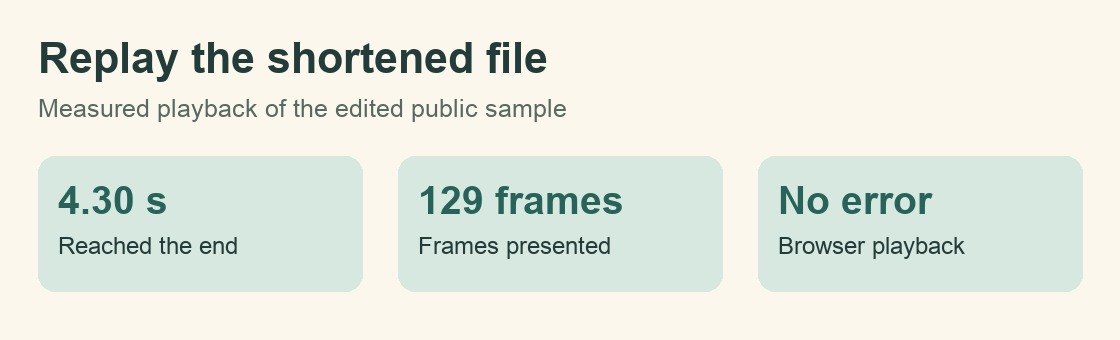
The shortened file played to the end in the local Chrome check.
That result covers the published example file in the software used for the check. The coaster photos above are synthetic references for your own trial. A fresh download from the free tool and its iMovie behavior still need to be checked with the file you generate.
For your own test, write down the editor name, the source filename and the copy you actually replayed. Note what changed with the trim and whether you could still see the detail that mattered. If someone else edits the next post, those notes tell them which file to open and what to look for. If you try a different tool later, run the same three checks with a file from that tool before drawing a conclusion about which fits your workflow.
Decide what you’ll send tonight
Write down the result in a line: file saved, clip imported, opening trimmed, cut played. If any check is still open, pause there before making more clips. If the cut plays and the right detail is visible, you have a small piece of work you can send to your friend for a quick look. That single check is useful when you compare tools because you’ve tried the part you’ll repeat on every clip.
Disclosure: This guide was prepared to share OpenMaker. AI assisted with the text and the original coaster illustrations.