Give the Ending a Pause Before You Add the Brand Name
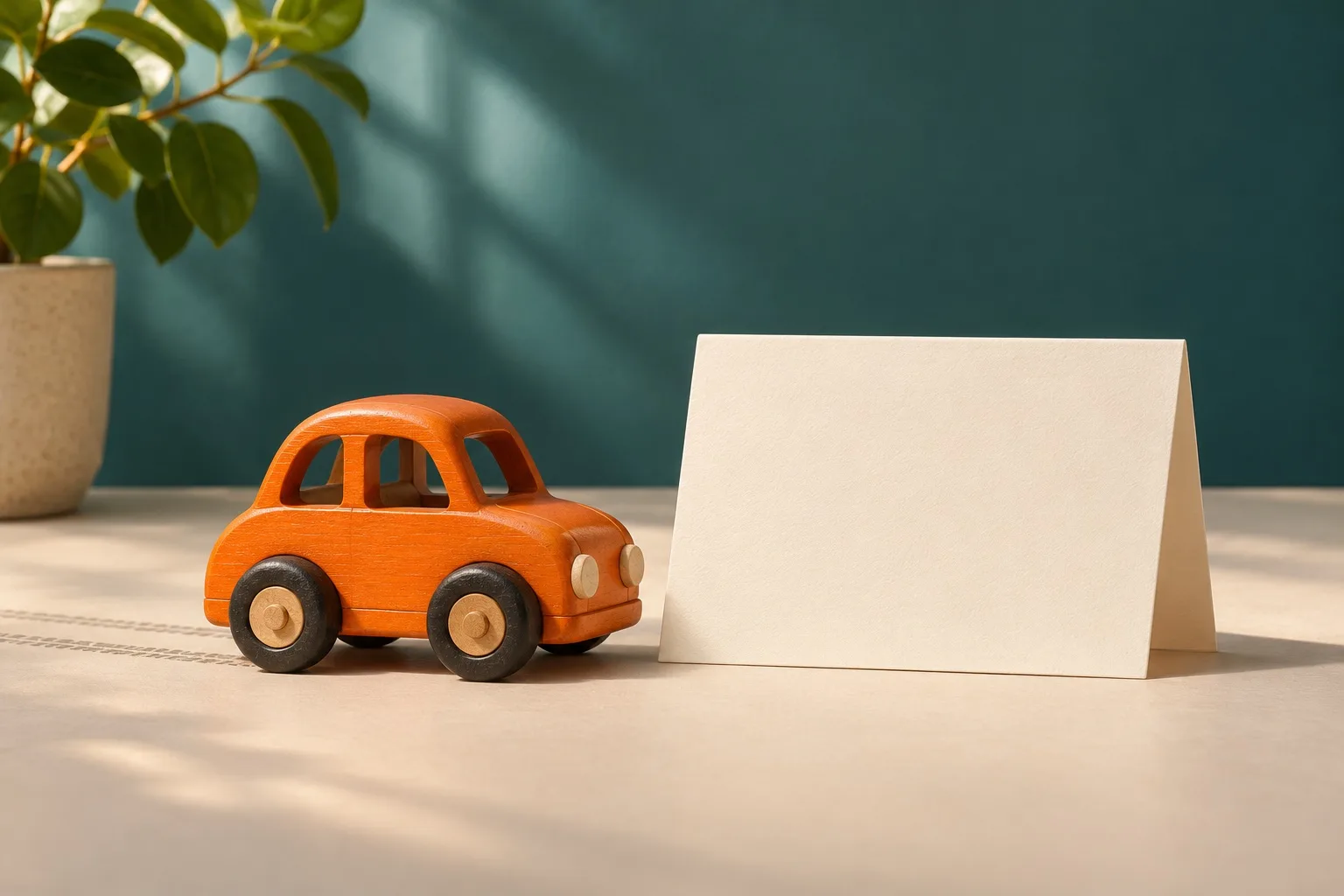
Picture a short product shot: an orange wooden toy car rolls across a cream tabletop and arrives near the middle of the frame. There is a teal wall behind it and enough empty space on the right for a brand name. The composition looks ready. The remaining question is whether the moving shot will give someone time to read that name.
The brief is small: one car, one movement to the right, and one ending that can carry a short label. This exercise compares a simple movement request with a request that explicitly asks the car to stop and the final view to hold.
Two AI-generated still images have been prepared for the example. They are inputs, not frames taken from a completed video. The generation, timing measurements, and final choice remain to be recorded from an actual trial.
Choose the picture you want to end on
The prepared start image places the orange car in the left quarter of a wide frame, facing right. In the end image, the car is near the centre. Both pictures use a cream tabletop, a teal wall, dark wheels, and a similar side view. The clear area to the right is the intended caption space.
Compare the wheel placement, window shape, car size, light, and tabletop line before using the pictures together. A visually different endpoint makes it harder to tell what changed because of the prompt. If an input needs adjusting, do that before the comparison and use the revised pair for both requests.
For the first trial, use a subject you have the right to share. You can prepare your own photographs or use a clearly identified fictional illustration. Keep both image files in the trial folder so you can reuse exactly the same pair.
For this example, the whole car should remain visible, the camera should settle, and a short label should fit beside the car. Those are the checks to make when the files return. Leave the actual company name for an editable text layer in your video editor.
Write two short motion descriptions
In HeyDream’s image-to-video workflow, place the first picture in Start Frame and the destination picture in End Frame. Both images are required. Choose the same aspect ratio and available settings for both requests; the prepared pair is wide, so use 16:9.
For request A, describe the movement simply:
The orange toy car rolls slowly to the right across the tabletop toward the position in the end image. Keep the camera fixed.
For request B, add the action you want at the destination:
The orange toy car rolls slowly to the right across the tabletop toward the position in the end image, then stops. Hold the final view with the car still and fully visible. Keep the camera fixed.
The added sentence gives the request a clearer ending. It is still an instruction to test. The output may continue moving, change the car, introduce another camera move, or finish before a useful pause is visible.
Keep the remaining settings the same for the pair of requests. Record the date, tool entry point, visible settings, input filenames, and both complete prompts. If a request fails or produces an unusable result, keep that observation too. Replacing it silently with a better attempt would hide part of the trial.
Save the outputs before judging them
Download each completed candidate and label it with the prompt version used. Keep the source pair, prompt text and output together. For example, a trial folder might contain start.jpg, end.jpg, prompt-a.txt, prompt-b.txt and the two downloaded videos.
Play both outputs from the beginning at their normal speed. Watch the destination as well as the movement. Does the car arrive in a place where it remains visible? Do the wheels and body keep a usable shape? Does the camera stay where you asked?
Then inspect the final part. Does the car stop before the file ends? Does the camera keep drifting after the car stops? Do the body or wheels continue changing? Use the editor’s playhead to note the start and end of any usable interval. If there is no usable hold, record that plainly. A pause in the car’s movement is less useful if the rest of the picture keeps shifting.
A paused frame can help you inspect the car. Play the ending again to check whether it really settles over time.
Try the caption in the editor
Import the candidate into the editor you normally use. Put “YOUR BRAND” in the clear area on the right as a temporary label. Keep it on a separate text layer so its wording, size, and timing remain editable. Replace it with the actual name when the ending is ready, and check again if that name is longer.
Watch that part at the size your audience will see. The car should remain legible and the label should have enough contrast. If your eye is still following the car when the words disappear, change the timing or the amount of text.
If the generated ending is too brief, one option is a still-frame extension in the editor. Choose a clean frame after the movement, add the hold, and play the transition into it. A sudden freeze can look awkward if the car was still travelling. Another endpoint or candidate may be more useful in that case. Record which change you make, including any still-frame extension, rather than attributing the edited timing to the generator.
The generator’s prompt can help you request an ending. Your editor gives you control over the final caption timing.
Compare what is actually usable
Fill one short record for each candidate. Include whether the car remains recognisable, whether it stops, whether the camera changes, and whether the trial caption is comfortable to read. Add a brief note about any editing required.
Keep observations specific. “The car moves until the file ends” is more informative than “bad result.” “The final view works after a short still-frame hold in the editor” explains a useful decision.
One output per prompt gives you two examples. It leaves plenty of uncertainty about what would happen on another request. If you repeat the exercise, record every candidate you consider, including the ones that are unusable.
You can then write about what this trial helped you decide. Perhaps the added instruction produced a useful ending. Perhaps both candidates needed editing. Perhaps the source pair needed another look. Use the files and notes to support whichever conclusion you reach.
Keep the ending you can use
Save the chosen version alongside the edit you made. Keep the input pair and the rejected candidate too, so you can revisit the decision when the next shot needs a pause.
For the toy car, keep the input pair, prompt A, prompt B, both original downloads, and the edited export. The final note should identify the usable ending and any added still-frame time. A screen capture of the editing timeline can show where the label begins, while a normal-speed export lets a teammate judge the timing without opening the project.
When reviewing the export, play the complete clip once more. Check the transition into the hold and the moment the label appears. Look for a visual jump, a sudden sound cut or an ending that feels longer than the shot needs. Use the playback to choose the edit that fits your purpose.
The shot is ready for its next use when the arrival, caption, and cut to the end work together. The brand name belongs in an ending the viewer has time to read.