37 Free Online Tools for PDF, Image and QR Code Tasks
37 Free Online Tools for PDF, Image and QR Code Tasks: A Practical Guide
Have you ever needed to make a quick change to a PDF file, only to discover that the software on your computer does not have the feature you need? Perhaps you received several documents that needed to be combined, had an image that was too large to upload, or wanted to create a QR code for sharing your WiFi details.
These are small tasks, but they can interrupt your work. Sometimes, you spend more time searching for the right website than actually completing the task.
This is one reason online utility tools have become so useful. Instead of installing a separate application for every small job, people can use browser-based tools to handle common file and image tasks.
SmartToolsPro brings 37 practical tools together in three main categories: PDF documents, images, and QR codes. The idea is simple: make everyday digital tasks easier to find and complete from one place.
Let's look at some common situations where these tools can help.
1. PDF Problems We Face in Everyday Work
PDF files are everywhere. Students use them for assignments and study material. Office employees share reports and forms in PDF format. Businesses send quotations, invoices, manuals, and agreements as PDF documents.
The format is convenient because it helps preserve document layouts across different devices. However, working with PDFs is not always as simple as opening and reading them.
Imagine receiving five separate PDF files for a single project. You need to send them to someone as one document. Opening each file, copying information, or trying to rearrange pages manually can become frustrating.
This is where practical PDF utilities can save time.
Merge PDF: Bring Multiple Documents Together
When information is spread across several PDF files, merging them can make everything easier to manage.
For example, a student may have separate files for lecture notes, assignments, and reference material. Combining them into one document makes it easier to store and share.
A small business might also combine a quotation, company profile, and product information into one PDF before sending it to a customer.
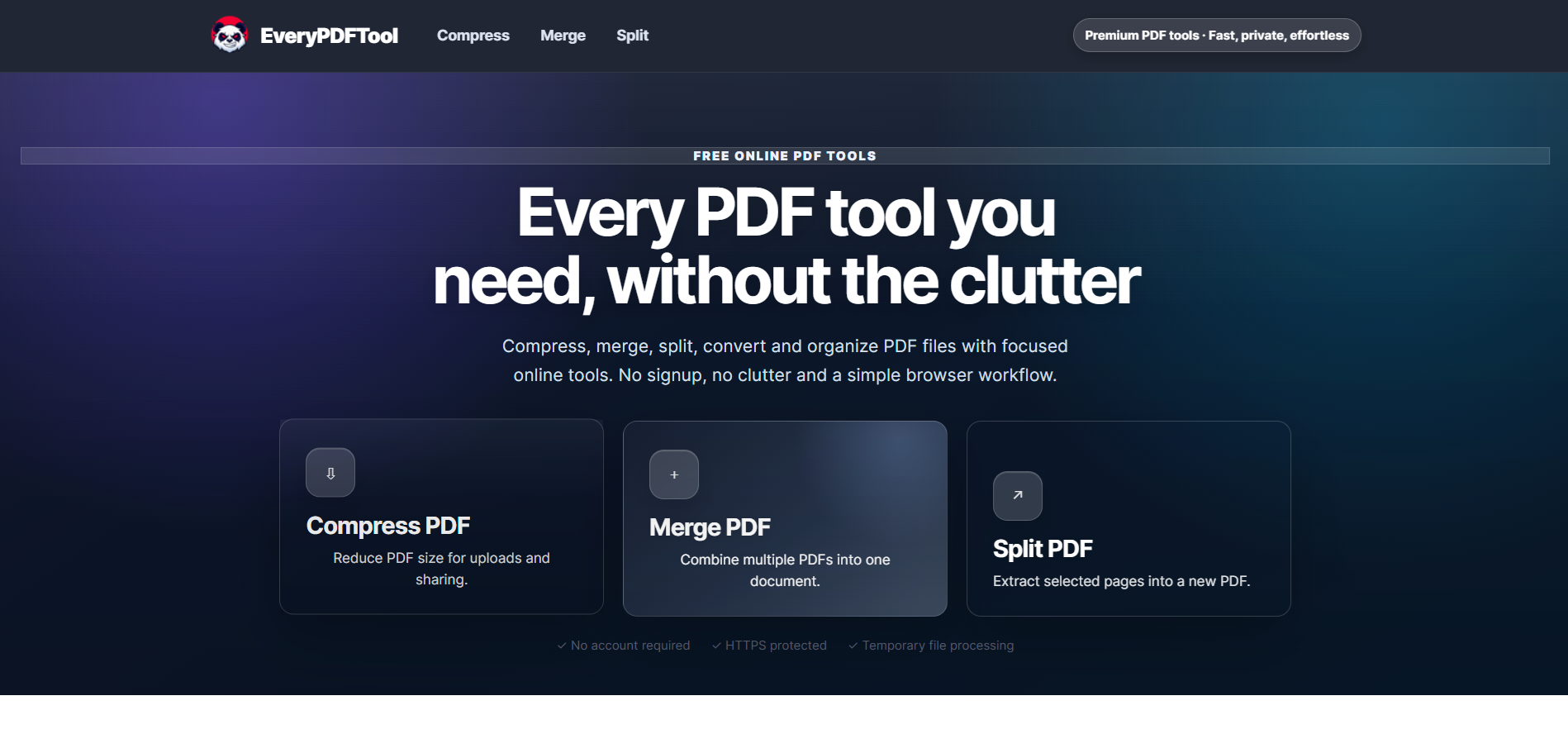
A Merge PDF tool helps combine multiple documents into a single file without requiring you to recreate the content.
Split PDF: Separate Only What You Need
The opposite situation is also common. You may receive a large PDF containing dozens or hundreds of pages, but only need a small section.
An employee might need to share three pages from a lengthy report. Sending the entire document may be unnecessary.
A Split PDF tool allows users to separate a document into smaller files. This is particularly useful when working with reports, manuals, educational material, and other lengthy documents.
Compress PDF: When a File Is Too Large
One of the most common PDF problems is file size.
You finish preparing a document, try to upload it to an online form, and receive an error because the file exceeds the permitted size. Email attachments can create similar problems.
Compressing a PDF can help reduce its size and make it easier to upload or share.
However, compression methods can affect document quality and functionality. Some methods may convert pages into images, which can make the text no longer selectable or searchable. Always check the compressed file before relying on it.
Organize and Extract PDF Pages
Sometimes a PDF contains all the correct information, but the pages are in the wrong order.
A report might have its appendix placed before the main content, or scanned pages may have been combined incorrectly. An Organize PDF tool helps rearrange pages into the desired order.
Extract PDF Pages is useful when you only want to save selected pages as a separate document. This can help when sharing a particular chapter, form, or section without distributing the entire file.
Other Useful PDF Tasks
There are many smaller PDF jobs that people encounter regularly:
Delete PDF Pages to remove unwanted pages.
Crop PDF to adjust page boundaries.
Add Page Numbers to make longer documents easier to navigate.
Add Watermarks to identify or label documents.
Sign PDF documents where supported.
Edit PDF content using available editing features.
Compare PDF files to identify differences.
Repair PDF files when a document has become damaged.
Protect PDF documents with password protection.
Unlock supported PDF restrictions when you are authorized to do so.
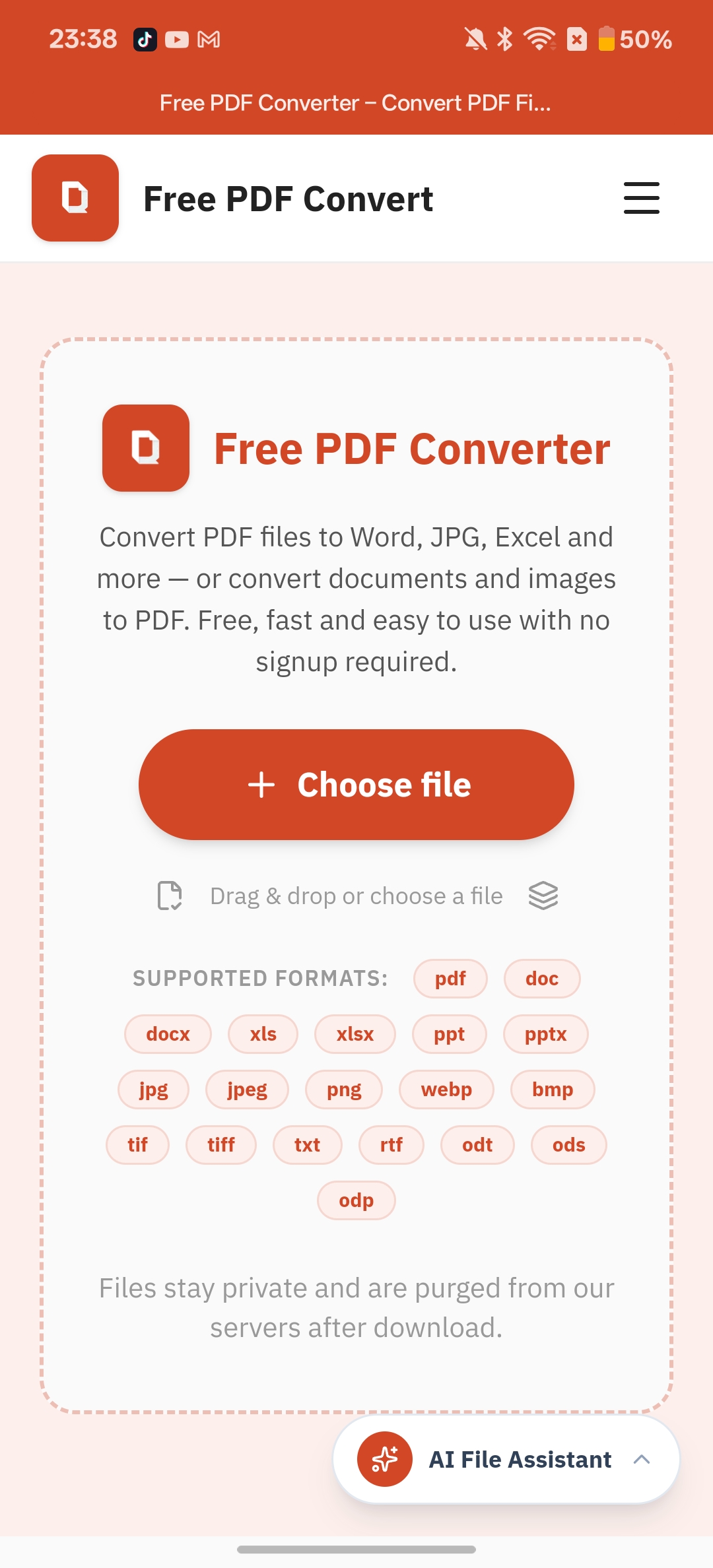
Convert PDF files into Word, Excel, PowerPoint, JPG, PNG, or text formats.
Convert Word, Excel, PowerPoint, and images into PDF files.
Use OCR to recognize text in scanned documents.
These tasks may sound simple, but having the right utility available can make a noticeable difference during a busy workday.
2. Image Tools for Work, Websites and Social Media
Images are an important part of modern digital communication. We use them in presentations, websites, online stores, social media posts, educational material, and business documents.
But an image that looks perfectly fine on your computer may not be suitable for the place where you want to use it.
For example, a website may require a smaller image, a social media platform may recommend specific dimensions, or an online form may accept only certain file formats.
Rather than opening a complicated editing application for every small adjustment, an online image utility can be a convenient alternative.
Image Converter: Change the File Format
Different platforms and applications support different image formats.
You may have a PNG image that needs to be converted into JPG, or a file that must be saved in another supported format before uploading.
An Image Converter helps change an image from one format to another. It is useful for everyday compatibility tasks, especially when sharing images between devices or preparing files for websites.
Remember to check the converted image because some formats handle transparency and image quality differently.
Image Resizer: Get the Right Dimensions
Image dimensions matter more than many people realize.
A photograph may be too large for a website, while a profile image may need specific dimensions to fit properly. Uploading an image with unsuitable proportions can lead to cropping or an inconsistent appearance.
An Image Resizer helps adjust the width and height of an image.
This can be useful for website owners, students preparing presentations, small business owners creating product listings, and anyone who regularly uploads images online.
Image Compressor: Reduce Image Size
Large images can make websites slower and consume more storage space.
Suppose you have several photographs that need to be uploaded to a website. Their original file sizes may be unnecessarily large for the intended purpose.
An Image Compressor helps reduce file size while aiming to maintain acceptable visual quality.
It is worth checking the final result at its actual display size. Excessive compression can introduce visible artifacts, especially in photographs containing fine details.
Background Remover and Image Enhancer
Sometimes an image needs more than a simple resize.
A product photograph may look better with a clean background. A photograph may also need visual improvement before it is included in a presentation or shared online.
A Background Remover can help separate a subject from its background, while an Image Enhancer can improve the appearance of supported images.
A Photo Editor provides additional basic editing options for users who need to make simple changes without opening a full desktop editing suite.
3. QR Codes: A Simple Way to Share Information
QR codes have become a familiar part of everyday life.
You may have scanned one at a restaurant to view a menu, used one to open a website, or seen one printed on a product package. Businesses also use QR codes on advertisements, visiting cards, posters, and promotional material.
Their biggest advantage is convenience. Instead of typing a long web address or manually entering information, someone can scan a code using a compatible device.
QR Code Generator
A QR Code Generator helps turn supported information into a scannable code.
For example, a small business can create a QR code that directs customers to its website. A teacher can share a link to online learning material, while an event organizer can use a code to direct visitors to event information.
The recipient simply scans the code to access the encoded information.
WiFi QR Generator
Sharing WiFi details with guests can become repetitive, particularly in offices, restaurants, and homes where visitors regularly ask for the network name and password.
A WiFi QR code offers a more convenient option. Guests can scan the code with a compatible phone instead of typing the details manually.
It is still important to share such a code only with people you trust because anyone who can scan it may be able to access the encoded network information.
Custom and Business QR Codes
Businesses often want QR codes that fit their branding or serve a particular purpose.
A Custom QR Code Generator can provide additional customization options, while a Business QR Generator can help prepare codes for business-related information.
Before printing a QR code on packaging, posters, or marketing material, test it with more than one device. Also make sure that the destination link works correctly.
QR Code Scanner
QR codes are useful only when people can scan them easily.
A QR Code Scanner helps users read supported QR codes and access the information they contain. This is useful when you want to check a code before sharing it or need to open information from a printed code.
4. Why Use One Platform Instead of Searching for Separate Websites?
There is nothing wrong with using different applications for different tasks. In fact, specialized desktop software may be the better choice for advanced editing or professional workflows.
However, everyday tasks do not always require complex software.
If you only need to merge two PDF files, resize a photograph, or create a WiFi QR code, installing a large application may feel unnecessary.
A platform that brings several utilities together can offer a few practical advantages:
Less time searching: You can explore different categories from one website instead of remembering multiple tool providers.
Convenience: Browser-based utilities are accessible from devices with a compatible web browser and internet connection.
Useful for occasional tasks: People who do not regularly edit documents or images may prefer an online utility for a quick job.
A variety of everyday features: PDF, image, and QR code utilities serve different needs, but they are often required by the same people.
That said, not every online service works in the same way. Some tools process files directly in the browser, while others upload files to a server for processing. Before using any online service with sensitive documents, review its privacy policy and understand how your files are handled.
5. Who Can Benefit from These Tools?
The usefulness of online utilities is not limited to one profession or group.
Students: They may need to combine lecture notes, extract pages from study material, convert documents, resize images, or create QR codes for projects.
Office employees: They often work with reports, scanned documents, forms, presentations, and files that need to be shared in a specific format.
Freelancers: People working with clients may need to prepare images, organize PDF documents, compress files, and share links or QR codes.
Small business owners: They can use image utilities for product photographs and QR codes for websites, business information, or customer access.
Website owners and content creators: They regularly prepare images, manage documents, and create visual material for online publishing.
The important point is that these are ordinary tasks. You do not need to be a technical expert to benefit from having practical utilities available.
6. Introducing SmartToolsPro
SmartToolsPro was created around a simple idea: everyday digital tasks should be easier to complete.
Instead of focusing on only one type of utility, the platform brings together 37 tools across three categories:
PDF tools for document conversion, editing, organization, and file management.
Image tools for conversion, resizing, compression, enhancement, and basic editing.
QR code tools for generating and scanning different types of codes.
The platform is intended for people who want straightforward tools for common digital tasks without having to install complicated software for every small requirement.
It is an ongoing project, and the goal is to keep improving the experience and making useful features easier to access.
If you would like to explore these utilities, visit SmartToolsPro.
Final Thoughts
Most of us do not spend our entire day editing PDFs, changing image formats, or creating QR codes. We simply need to complete these tasks when they arise and get back to our actual work.
That is why convenient online utilities can be valuable. A good tool does not need to be complicated. It needs to solve the problem, produce a useful result, and make the process straightforward.
Whether you are combining documents for an application, reducing an image size before uploading it, or creating a QR code for your business, having the right utility within reach can save time.
SmartToolsPro aims to bring these everyday PDF, image, and QR code tasks together in one accessible place.